
By Wearablewhiz / Published October 1, 2026 · Updated October 1, 2026
Last Tuesday I woke up, checked my closed rings from the day before, and had no idea whether to push my run or dial it back. My HRV looked fine in the Health app. My legs felt like concrete. Those 2 signals disagreed, and I had nothing that combined them into a single answer.
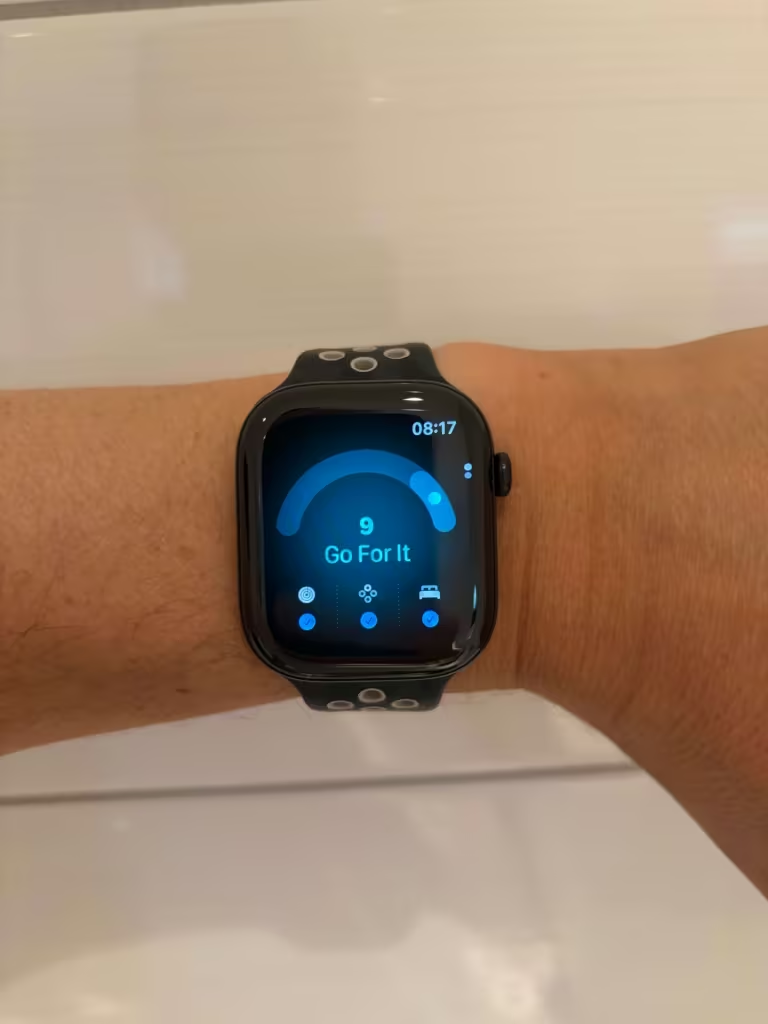
That’s the exact gap Apple just tried to close. watchOS 27 added a Readiness app, and It gives you a readiness score that usually appears after your overnight data is available, but can change throughout the day. Here’s what actually feeds that score, and when you should trust it over your own gut.
Why a single number matters
Your Apple Watch has tracked the raw ingredients for years. HRV lives in the Health app. Sleep gets its own score. Training Load sits in the Activity app. The data was never the problem.
The problem was doing the math yourself at 6am, half awake, trying to work out whether yesterday’s hard ride plus a rough night’s sleep meant today was a rest day or just a normal one.
Wearables like Whoop and Oura built entire products around solving that: fold the inputs into 1 score, tell the person what to do with it. Apple just built the same idea directly into the watch, for the first time, on 2 specific models.
How the Apple Watch readiness score works
The Readiness app is only available on Apple Watch Series 12 and Apple Watch Ultra 4 running watchOS 27, for users 13 and up. It’s part of Apple’s new Health Sensing System announced in September 2026, so it’s a genuinely new feature that will likely evolve over time.
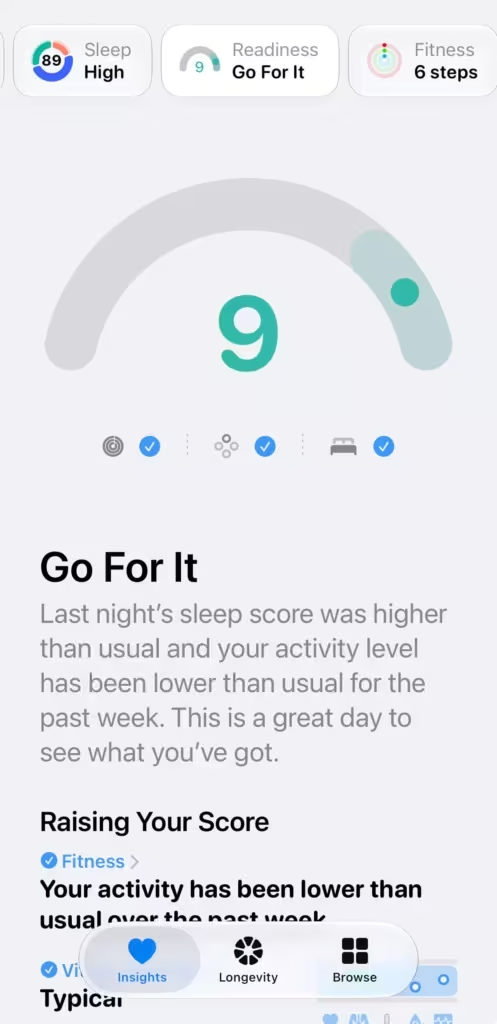
Your score runs from 0 to 10, and it pulls from 3 places:
- Activity: active calories, your workout effort ratings, and your Training Load data. More activity than usual tends to lower your score. Steady or reduced activity can support a higher score, and you’ll often see the number dip during the day right after a hard session.
- Vitals: your daytime and overnight heart rate, HRV, respiratory rate, wrist temperature, and blood oxygen, measured against your own baseline. That baseline needs at least 7 of the past 49 nights of sleep with your watch on. When your vitals read “Notably” or “Slightly” off, your score drops. When they’re “Typical” or “Favorable,” it rises. If those overnight numbers don’t mean much to you yet, here’s what each one in Vitals actually measures.
- Sleep: your sleep score from last night plus your recent history. A rough night pulls the number down. A strong or improving sleep score pushes it up.
To see your score, open the Readiness app on your watch, or check the Fitness app on your iPhone (you may need to scroll to the bottom). Tap the Activity, Vitals, or Sleep buttons inside the app to see which input is driving your number. The score also updates through the day based on calories burned, naps, and your daytime heart rate, so it’s not a fixed morning verdict.
Before any of this shows up, you need your height, weight, and age entered in the Fitness app, Activity set up, Sleep configured with at least 7 nights of watch-wearing, and Overnight Vitals turned on.
Here’s the gap Apple leaves open. Readiness only runs on 2 watch models, so if you’re on a Series 9, 10, or 11, you don’t get this feature at all, no matter how new your watch is. And even on Series 12 or Ultra 4, Apple says plainly that the score doesn’t account for existing conditions or medications, and isn’t meant to replace medical judgment. It also has no idea what your training plan actually calls for. A high workload during a marathon build-up is expected. The watch can’t tell the difference between planned overreach and actual burnout.

What each readiness score means
| Score | Label | What it means | What to consider |
|---|---|---|---|
| 8–10 | Go for it | Activity, vitals, and sleep are all trending favorable | Good day for a hard session if your plan calls for one |
| 5–7 | Ready | Your inputs look typical for you | Normal training day |
| 2–4 | Pace yourself | 1 or more inputs (workload, vitals, or sleep) are off your baseline | Keep the session, but drop the intensity |
| 0–1 | Recover | Multiple inputs are compounding in the wrong direction | Rest or light movement, and take any symptoms seriously |
What to do with your readiness score
Treat it as a daily check-in, not a verdict to obey blindly.
Say your readiness reads 6 on Monday morning after an easy weekend, so you go for a threshold run that afternoon. Tuesday morning your score drops to 3. Your vitals read “Slightly off” and your sleep score dipped after a late night. Your Training Load barely moved, so recovery is driving the drop, not workload. That’s your cue to swap Tuesday’s planned intervals for an easy jog, then check back Wednesday before deciding on Thursday’s harder session.
Watch what happens over 2 to 3 consecutive days more than any single morning. A “Pace yourself” reading after 1 hard workout is normal recovery. The same reading for a full week, alongside vitals that keep reading “Notably off,” is worth paying attention to.
If you’re on an older Apple Watch and don’t have access to Readiness at all, you’re not out of luck. You can build a rough version of the same idea yourself using HRV, resting heart rate, and sleep duration from the Health and Vitals apps. I walked through exactly how to do that in my post on building a manual recovery score.
The one thing to remember
Apple finally did the math it was always sitting on. It still can’t tell you what your training plan needs. That part’s still on you.
Sources: Understand your readiness score on Apple Watch, Apple Support | Use the Readiness app on Apple Watch, Apple Support