
By Wearablewhiz / Published June 15, 2026 · Updated September 13, 2026
Every time I finished a hard week of runs, I’d open my Activity app and see all 3 rings closed. Move, exercise, stand – all done. But I had no idea if I was pushing too hard, not hard enough, or right where I needed to be. Then I found Training Load, which is not obvious unless you go looking for it. It finally started to answer that question.
Here’s what apple watch training load actually measures, where to find it, and what to do when it tells you you’re “Well Above.”
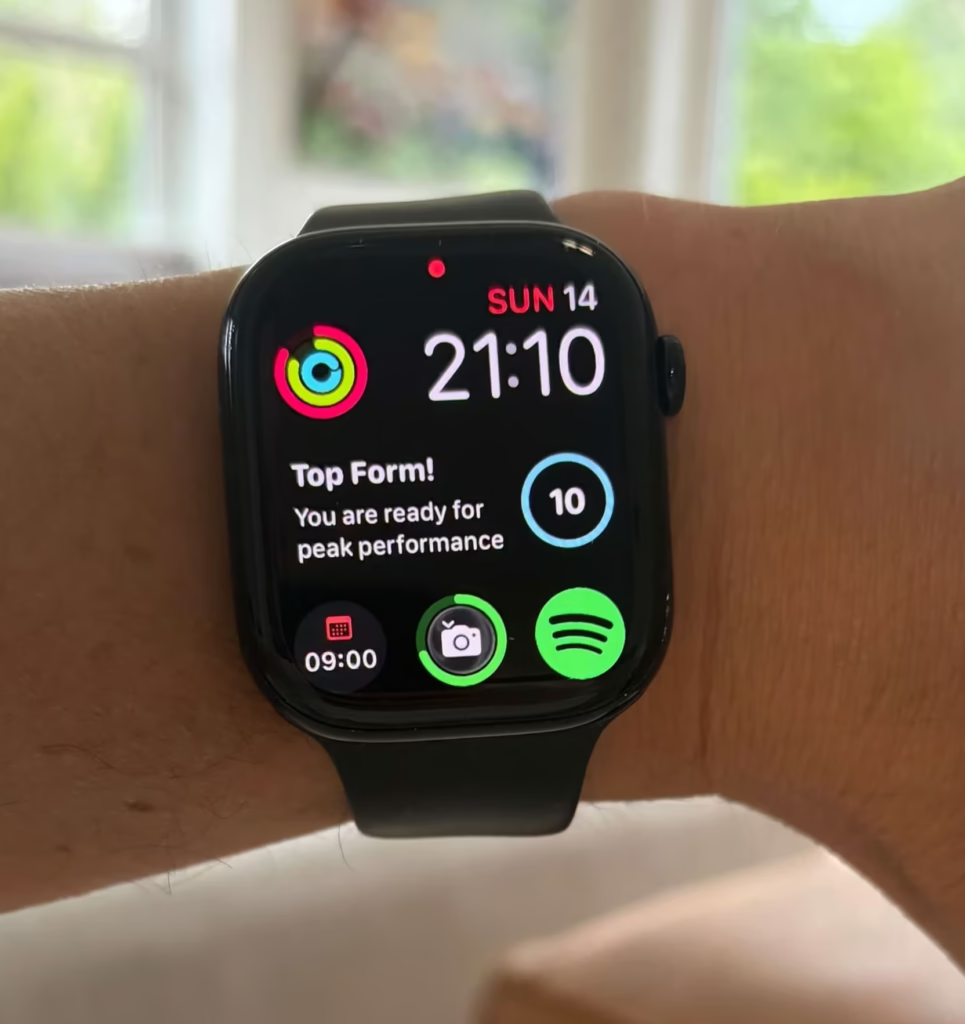
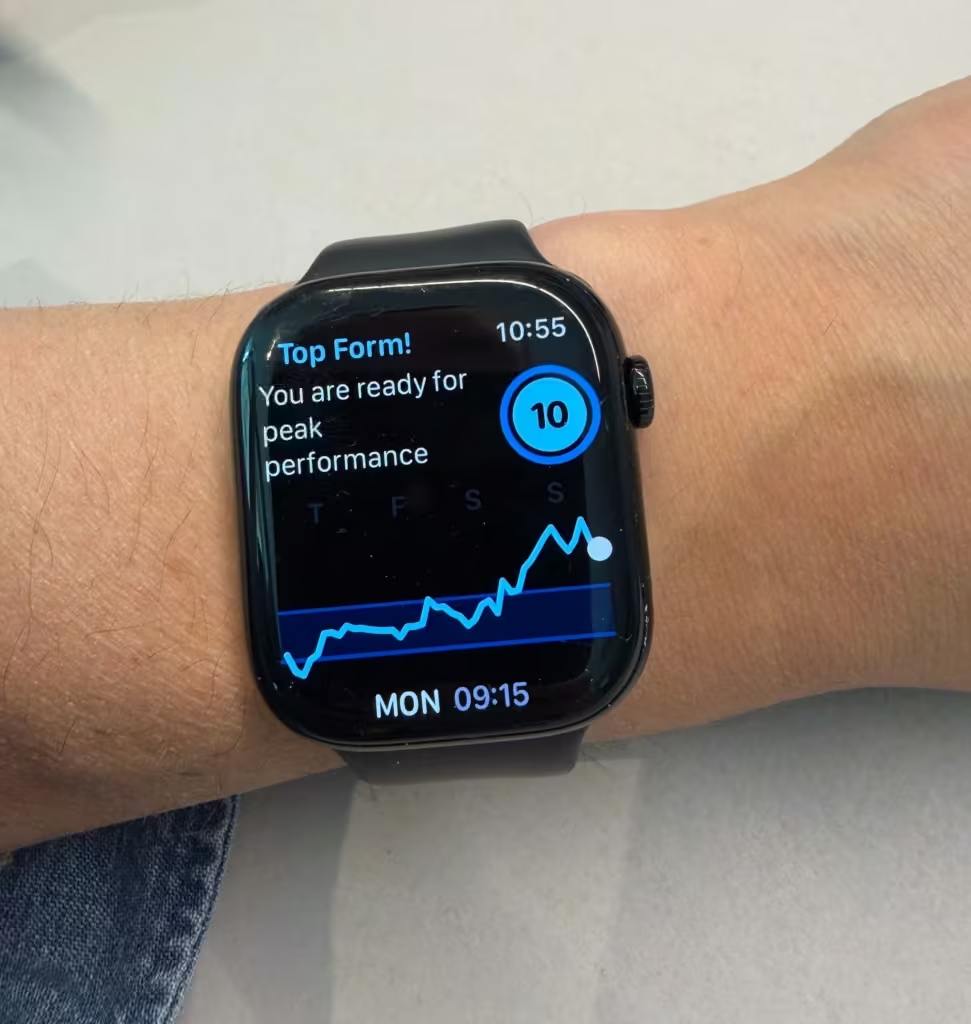
Apple Watch Series 12 adds Readiness, a daily score that combines Training Load with recent activity, sleep, and vitals. It can help indicate whether you are ready to push, should pace yourself, or may need recovery.
That closes part of the gap discussed later in this guide: Apple now connects workout stress with recovery-related signals. But Readiness is not the same as a personalised training plan. It does not know whether you are building toward a half marathon, tapering for a race, following a coach’s schedule, or simply trying to stay active.
The short version: Training Load shows whether your recent workload is above or below your normal; Readiness helps show whether your body may be prepared to handle more today.
What training load is actually measuring
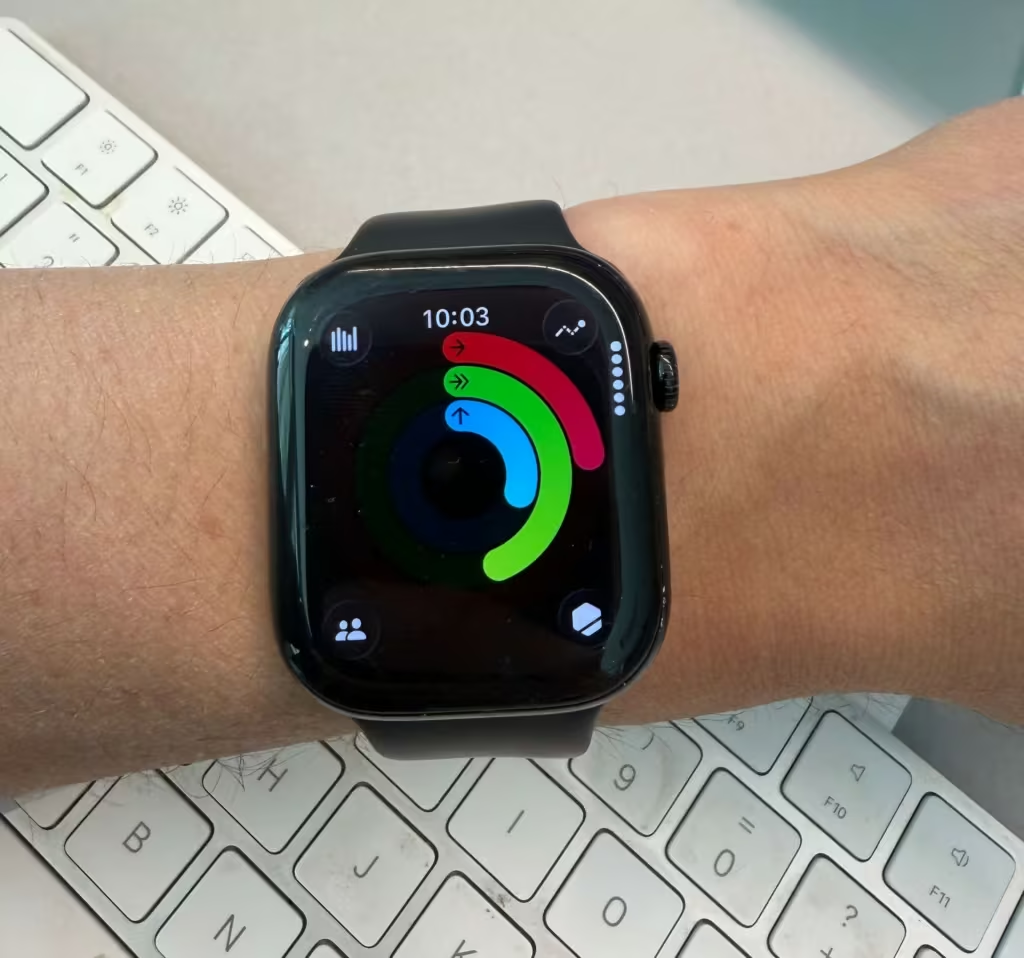
Your Activity rings track movement. Training Load tracks something different.
It measures the cumulative strain of your workouts over time. The idea isn’t new, coaches in endurance sports have tracked training load for decades because they know that fitness is built in the gap between stress and recovery. Work hard enough, recover well enough, and you get fitter. Work hard without recovering, and you get tired, then injured, then sick.
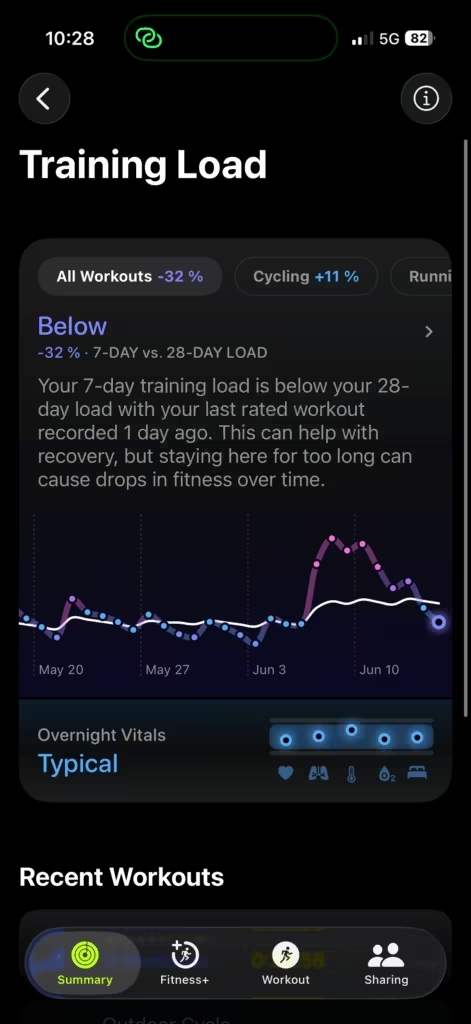
Apple’s version of this compares the intensity and duration of your workouts over the last 7 days to your previous 28 days. It’s not counting steps. It’s not estimating calories. It’s looking at actual workout effort, which is a completely different signal.
That distinction matters because you can close your Activity rings every single day and still be under-recovering. A 20-minute walk closes a Move ring. A 90-minute tempo run does something very different to your body. Training Load tries to capture that difference.
Let’s say your normal week looks like:
- 3 easy runs (30–45 min)
- 1 long run (75–90 min)
That typically keeps you in the “Steady” range.
Now you add:
- An extra interval session
- And push your long run to 2 hours
That same week will likely push you into “Above” or even “Well Above,” depending on how hard those sessions are relative to your usual effort.
Nothing about your routine looks extreme on paper, but the cumulative strain adds up quickly. That’s exactly what Training Load is trying to capture.
How Apple Watch calculates the score
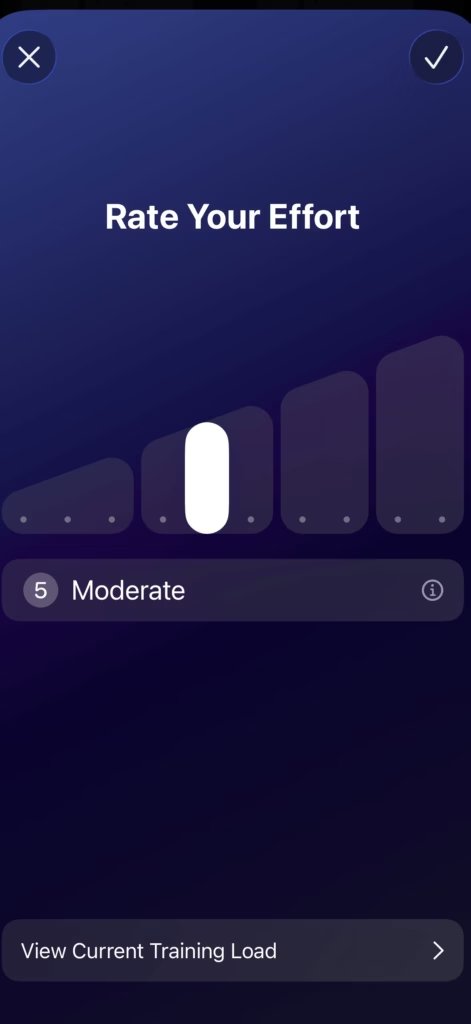
After each workout, your Watch assigns an effort score from 1 to 10. It is primarily based on your heart rate data during the workout, your pace, elevation gain, and personal stats like weight and height. The score reflects how hard that workout was relative to your capacity, not just in absolute terms.
You’ll see this score right after a workout summary. If it’s off, you can edit it manually. This matters more than you’d think. If your GPS drops mid-run and your pace data is wrong, the effort score might be too low. You can bump it up.
Over time, those effort scores stack up into a 7-day rolling total. The Activity app then compares that total to your 28-day baseline and puts you into one of 5 classifications.
Training load classifications at a glance
| Classification | What it means | What to consider |
|---|---|---|
| Well below | Much less workout stress than your 28-day norm | Intentional rest or deload week – fine. Accidental drift, worth addressing next week. |
| Below | Slightly under your usual baseline | Recovery week territory. Good when planned, watch if it becomes a pattern. |
| Steady | On par with your 28-day average | Maintenance zone. Right for race week, busy life, or coming back from illness. |
| Above | More workout stress than usual | Building fitness. Sustainable short-term with good sleep and recovery. |
| Well above | Significantly more than your 28-day norm | Hard training block. Fine for 1–2 weeks. Watch for fatigue signals after that. |
Where to find it on your Watch
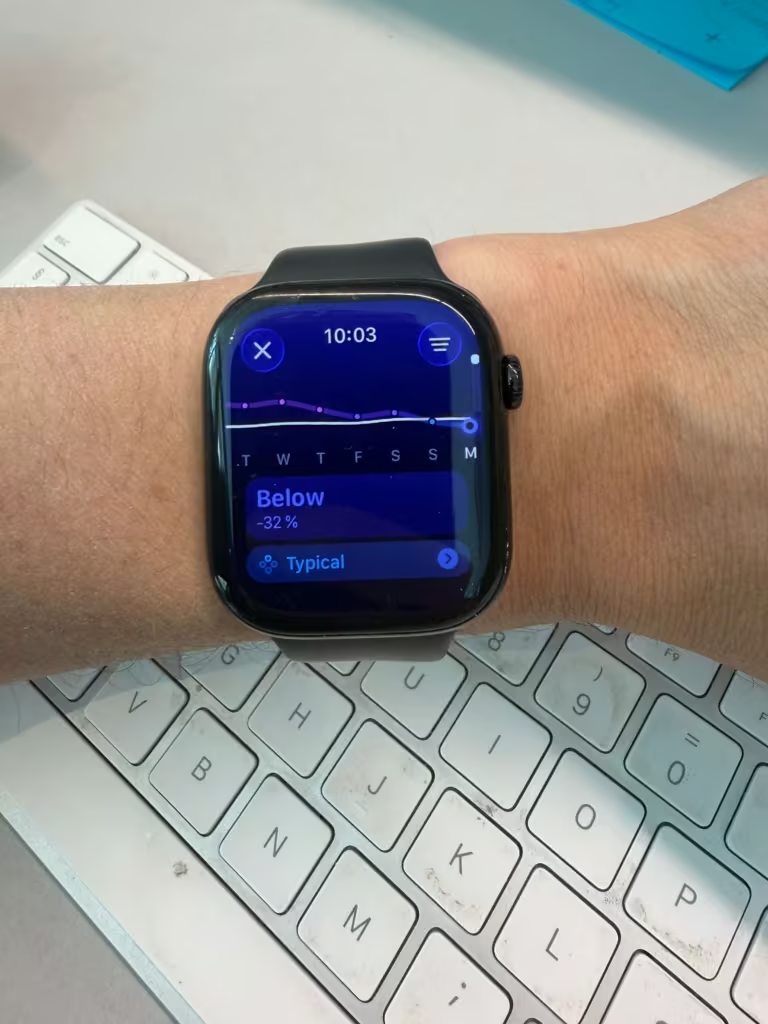
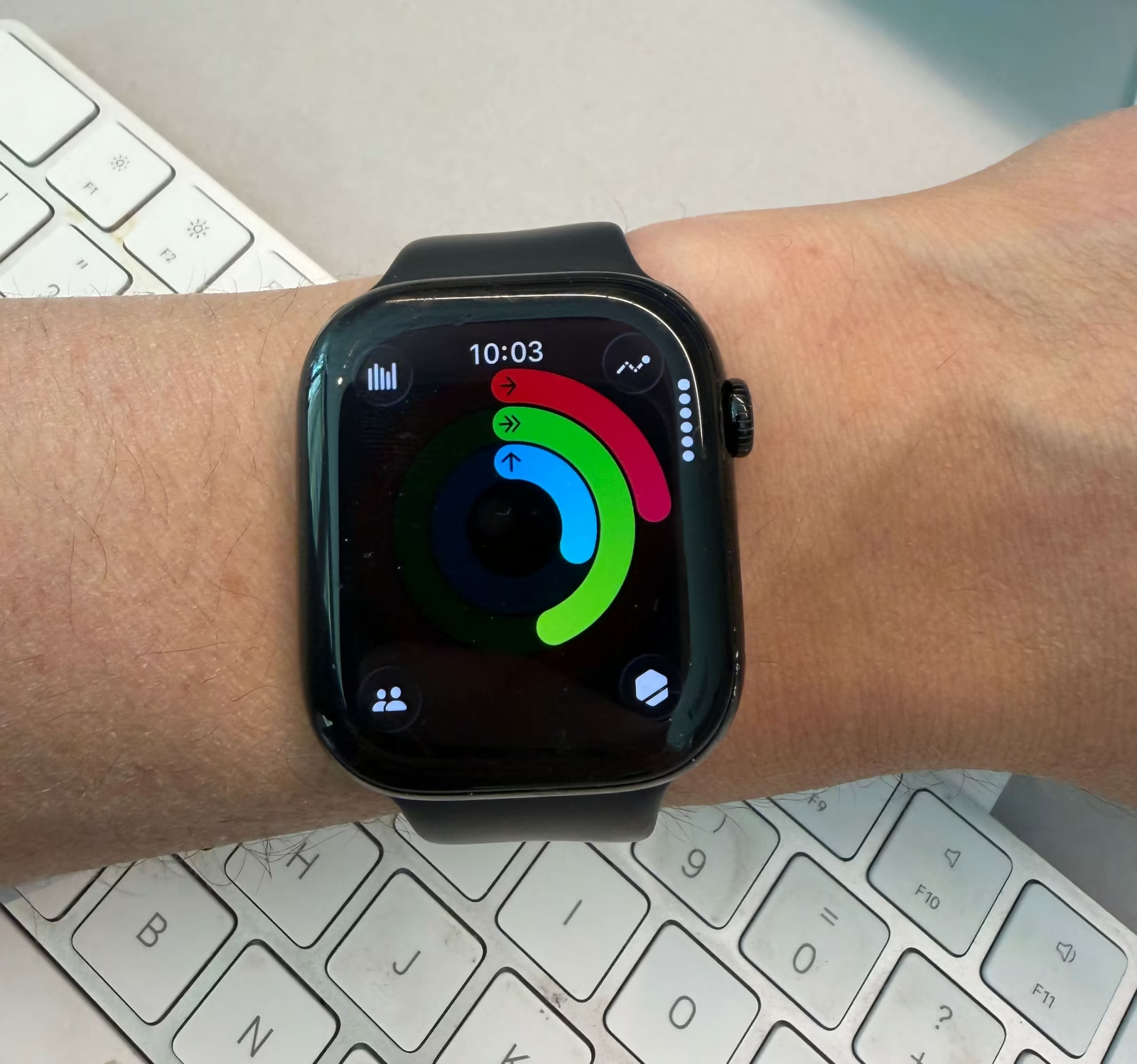
Open the Activity app on your Apple Watch. Look for the Workload button, it’s the bar graph icon. Tap it, then turn the Digital Crown to scroll through your last 7 days.
You can also filter by workout type. If you run and cycle, you can isolate running load from cycling load and see how each one is trending separately. That’s genuinely useful if you train across sports and want to make sure one isn’t swamping the other.
One thing worth knowing upfront: Training Load needs 28 days of workout history to activate. If you just got a new Watch, or you’ve had a long break, you’ll need to build that baseline before the feature starts showing you anything meaningful.
What each classification actually means
Steady is your baseline. You’re working at roughly the same level you’ve maintained for the past month. Your body is adapted to this. Steady is where you want to be during race week, when life is hectic, or when you’re coming back from illness and don’t want to dig yourself into a hole.
Above and Well Above mean you’re doing more than usual. That’s how you build fitness. A training block is supposed to push you above your baseline. The problem isn’t being “Above”, the problem is staying “Well Above” for too long without a recovery week.
A practical rule: if you’re sitting at “Well Above” for more than 2 consecutive weeks, start paying attention to the other signals. Is your resting heart rate elevated? Are easy runs feeling harder than they should? Is your sleep quality dropping? Those are the signs your body needs a lighter week, and Training Load on its own won’t tell you that.
Below and Well Below mean you’re doing less than you have been. Sometimes that’s intentional, a taper, a vacation, a deliberate deload. Those are good. What you want to avoid is drifting into “Well Below” without meaning to. A week below baseline is recovery. A month below baseline is fitness loss.
Learn how to use your 60-second recovery drop to see if your body is absorbing your training load.
The data gap Apple leaves open
Training Load is a real feature that does real work. But Apple gives you the classification without the instruction manual.
It doesn’t know your goal. If you’re 8 weeks out from a half marathon, “Well Above” might be exactly where your training plan wants you. If you’re just trying to stay active and healthy, “Steady” is the sweet spot. The Watch has no idea which situation applies to you.
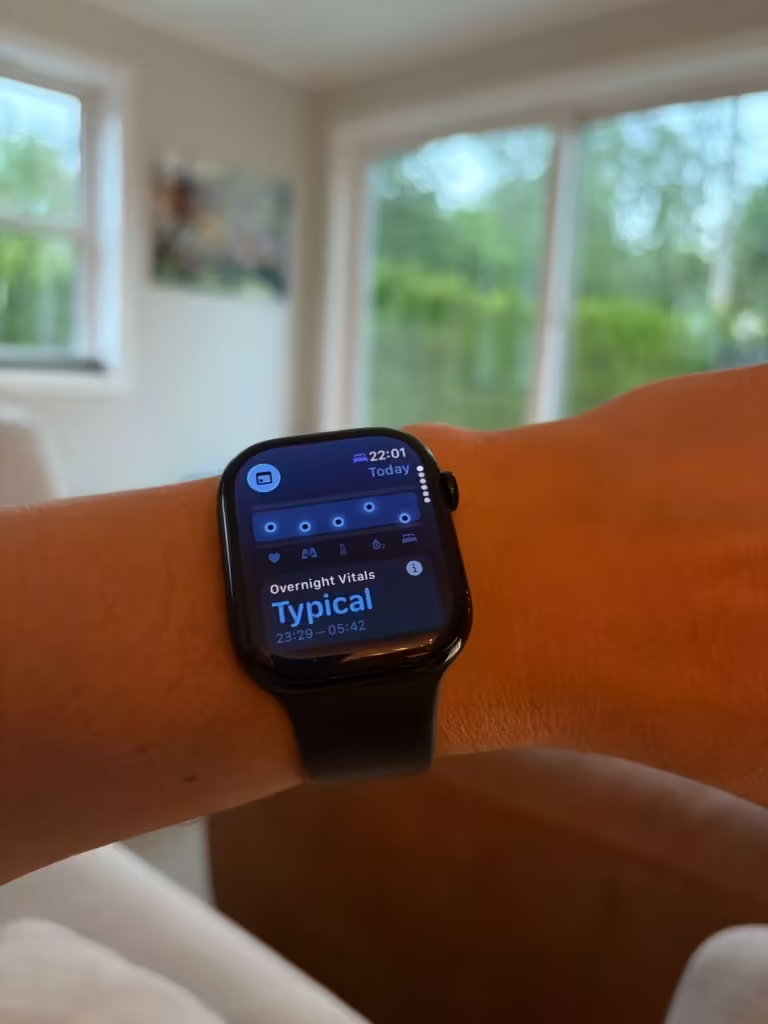
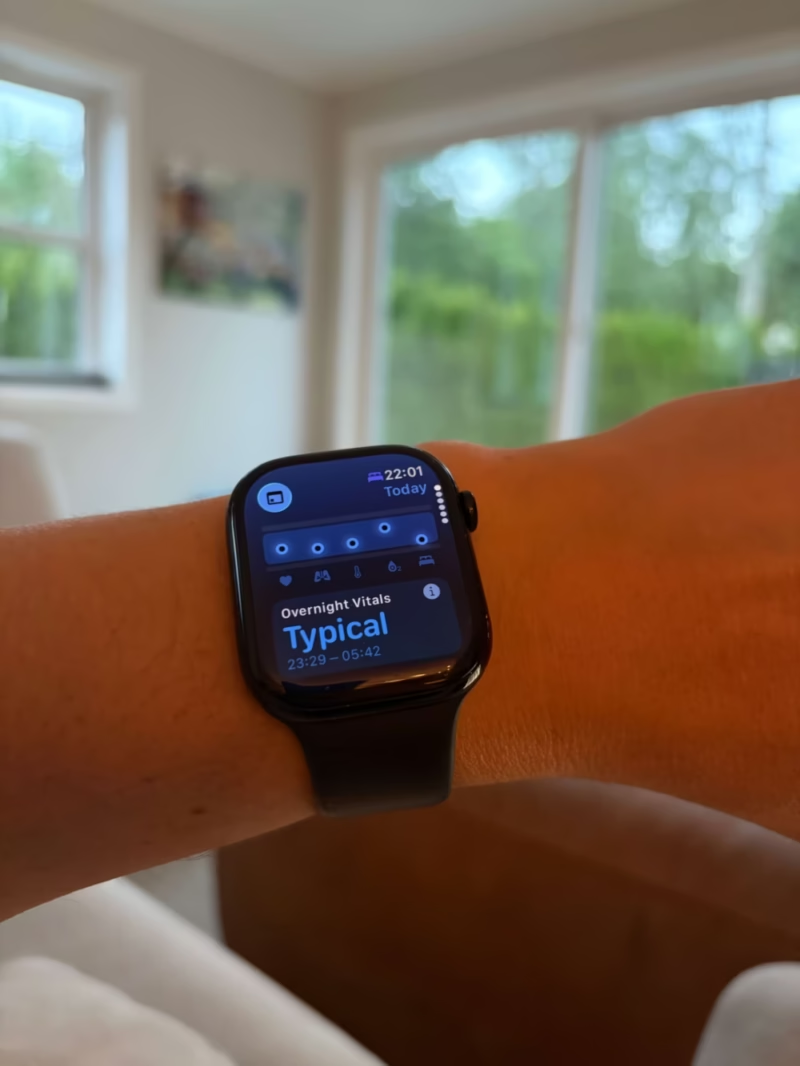
It also doesn’t connect training load to how your body is actually recovering. You could be classified as “Steady” and still be running on an empty tank if your sleep has been wrecked or your stress levels are high. You can check your overnight Vitals for more context on that.
Garmin goes further with its coaching system:
- Training load is split across intensity zones, not just overall volume
- It tells you whether your training is productive, maintaining, or pushing too hard
- It actively tries to guide your next session
Apple keeps it simpler:
- Your recent workout effort compared to your own 28-day baseline
- Better at showing the trend than telling you what to do next
- It surfaces the data and leaves the interpretation to you
One app that fills this gap well is Training Today. It reads your HRV data from Apple Health and gives you a daily readiness score. When you pair a “Well Above” training load with a low readiness score from Training Today, you get a much clearer picture of whether to push the next workout or pull back.
Training Load needs this Watch to work
Training Load requires watchOS 11, which runs on Apple Watch Series 6 and newer, that includes the SE (2nd generation) and all Ultra models.

How to actually use it week to week
Training Load works best as a weekly check-in, not a daily obsession.
Here’s the routine I use: on Sunday, I open the Activity app and look at where my 7-day load sits. Then I ask one question: does this match how I actually feel?
If I’m “Above” and I feel good, I keep the plan. If I’m “Steady” but I feel exhausted, something else is going on, usually sleep or stress, and I treat the next week like a recovery week regardless of what the app says. If I’m “Well Below” and I wasn’t planning a rest week, I figure out what got in the way and whether the following week needs to compensate.
Training Load is context, not a verdict. It tells you what your workouts have looked like on paper. It doesn’t know how you slept, how much you’ve been stressing at work, or whether you’re coming down with something. Those factors matter just as much to recovery as the workouts themselves. This is where I also look at my vitals app to see of everything looks normal. HRV is also a good indicator for how I am coping with stress etc.
A note on building your baseline
Since Training Load compares you to yourself, the quality of your baseline matters. If you had a light month because of illness or travel, your 28-day average will be lower than normal, which means your current workload might look “Above” even when it’s actually moderate.
Give the feature 2 to 3 months of consistent workout logging before you make real decisions based on it. The longer Apple has to learn your normal, the more useful the classifications become.
The number most people never check
Most Apple Watch users never open the Workload screen. They close their rings, maybe check their heart rate, and move on.
Training Load is the metric that actually tells you whether you’re building fitness or just accumulating fatigue. Your Watch has been tracking this the whole time. Now you know where to look.
If you want to go deeper on vitas and HRV, I recommend to check out our two other articles:
- HRV: https://wearablewhiz.com/apple-watch-hrv-explained/
- Vitals explained: https://wearablewhiz.com/apple-watch-vitals-explained/
Sources: Track your training load on Apple Watch — Apple Support | watchOS 11 brings powerful health and fitness insights — Apple Newsroom