
By Wearablewhiz / Published June 14, 2026 · Updated September 8, 2026
Apple collects your health data 24/7. The problem is it’s scattered across multiple apps with no single answer.
Here’s the routine I use every morning to build a simple Apple Watch recovery score. 2 apps, 2 minutes.
This isn’t a built-in Apple feature. It’s a DIY scoring system you can use as a guide to bring your key recovery metrics together into one daily read. Think of it as a personal checklist, not a medical score.
Why personal baselines matter
Before getting into the steps, one thing to understand: none of these numbers mean anything on their own. An HRV of 65ms could be excellent for one person and a red flag for another.
What matters is how your numbers compare to your own normal. Apple calculates this automatically the longer you wear your watch. The more data it has, the more accurate your personal baseline becomes.

Step 1: Open the Health app Summary
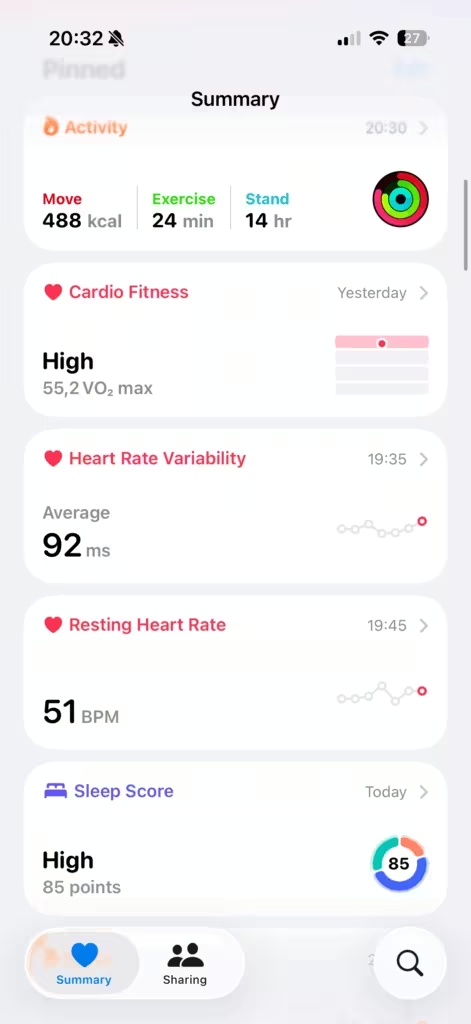
The Summary tab shows your key metrics as tiles. Check these three:
HRV
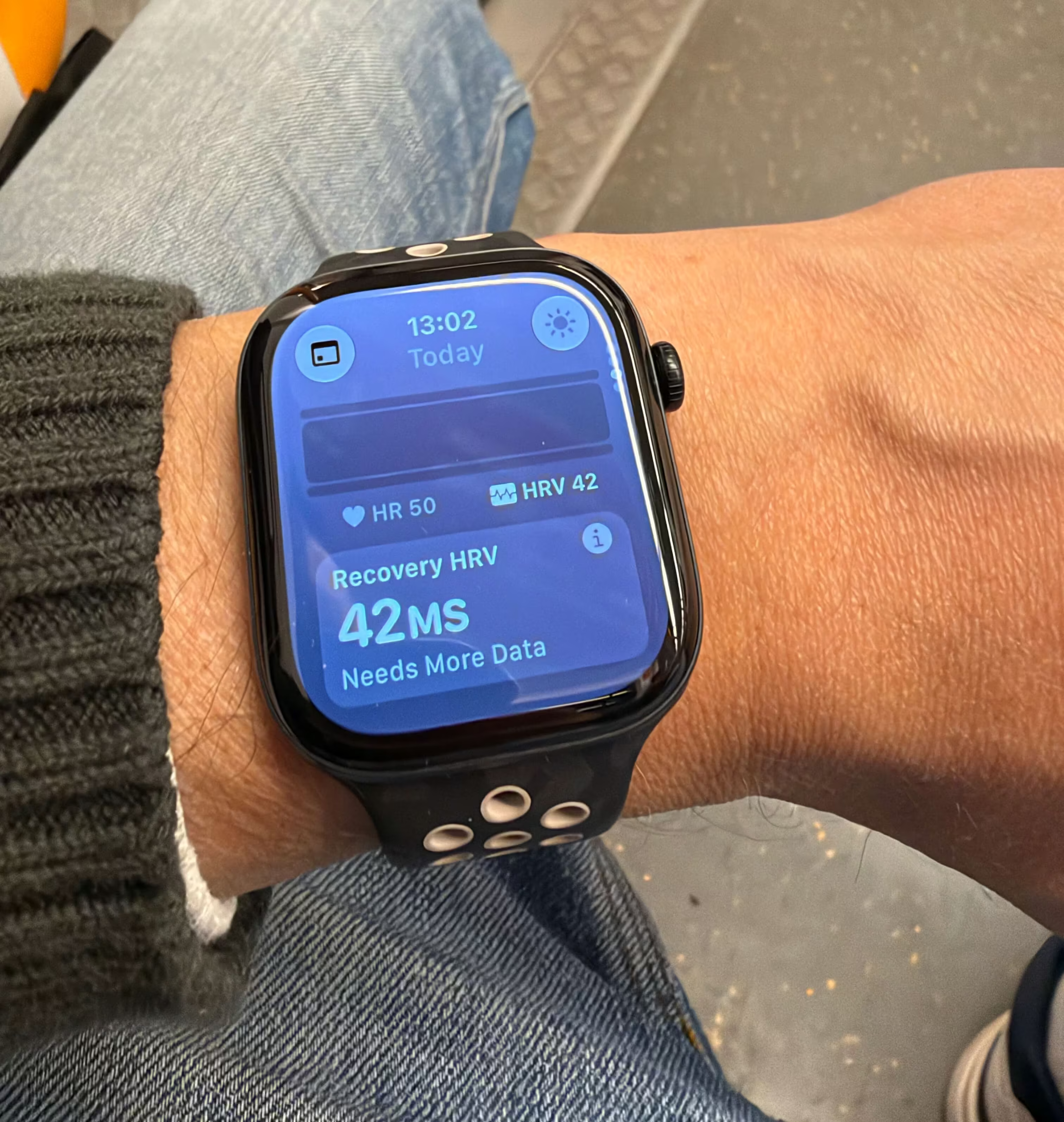
HRV stands for heart rate variability, the variation in time between each heartbeat. It’s one of the best signals your body produces for recovery. A higher HRV generally means your nervous system is recovered and ready. A lower one means it’s under stress from training, poor sleep, alcohol, or illness.
- The Summary tile shows your daily average for today
- To understand your baseline, tap in and switch to W (week) or M (month) view
- That longer view shows your trend over time and what’s normal for you
- My average runs 60-70ms. A morning reading well below that is a flag.
- At or above your recent average = 1 point. Noticeably below = 0 points.
Resting heart rate
Resting heart rate (RHR) is your heart rate measured while you’re awake and completely still. Your Apple Watch takes background readings throughout the day whenever it detects you’re stationary (sitting at your desk, reading, watching TV) and calculates a daily average from those moments.
When RHR is elevated above your normal, your body is working harder than usual. This can happen after a hard training session, a late night, or alcohol.
- Know your normal range (mine sits around 50-55 bpm)
- Inside your normal range = 1 point. Above it = 0 points.
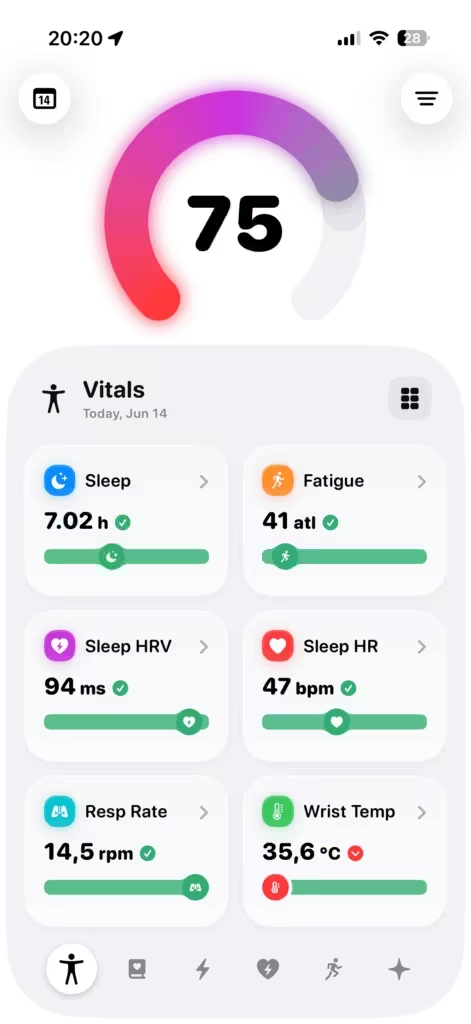
Note: your RHR will almost always be higher than your sleeping heart rate in the Vitals app. RHR captures waking stillness. Vitals captures you while asleep, when your heart rate drops even lower. Both numbers are correct. They’re measuring different states. Looking at Vitals app from last night, 44 BPM was the number, while my RHR has been showing average 51 BPM. Different numbers, but both important to pay attention to.
Sleep Score
Apple scores your sleep quality from 0 to 100 and labels it High, Normal, or Low.
- High or Normal = 1 point. Low = 0 points.
Poor sleep doesn’t just make you tired. Research consistently links poor sleep to lower HRV and slower physical recovery. A low sleep score on its own is enough to dial back intensity for the day.


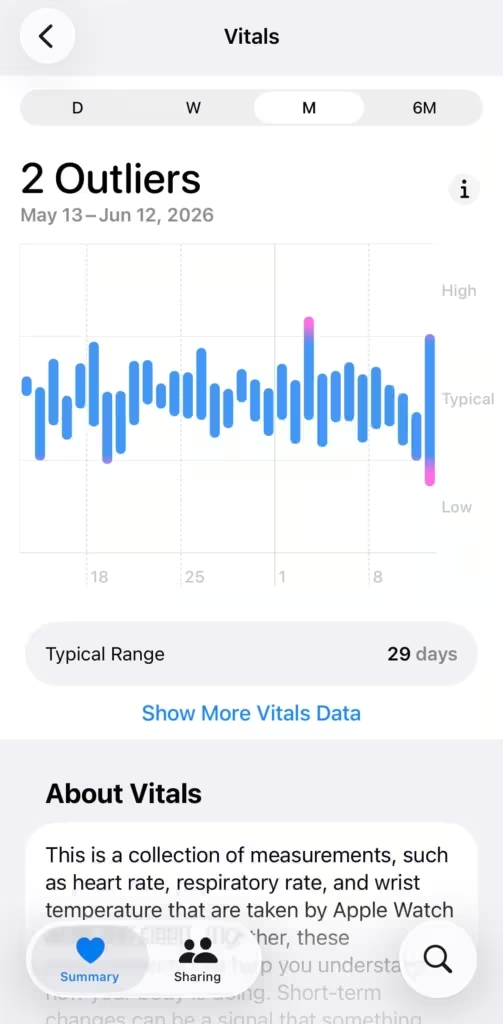
Step 2: Open Vitals
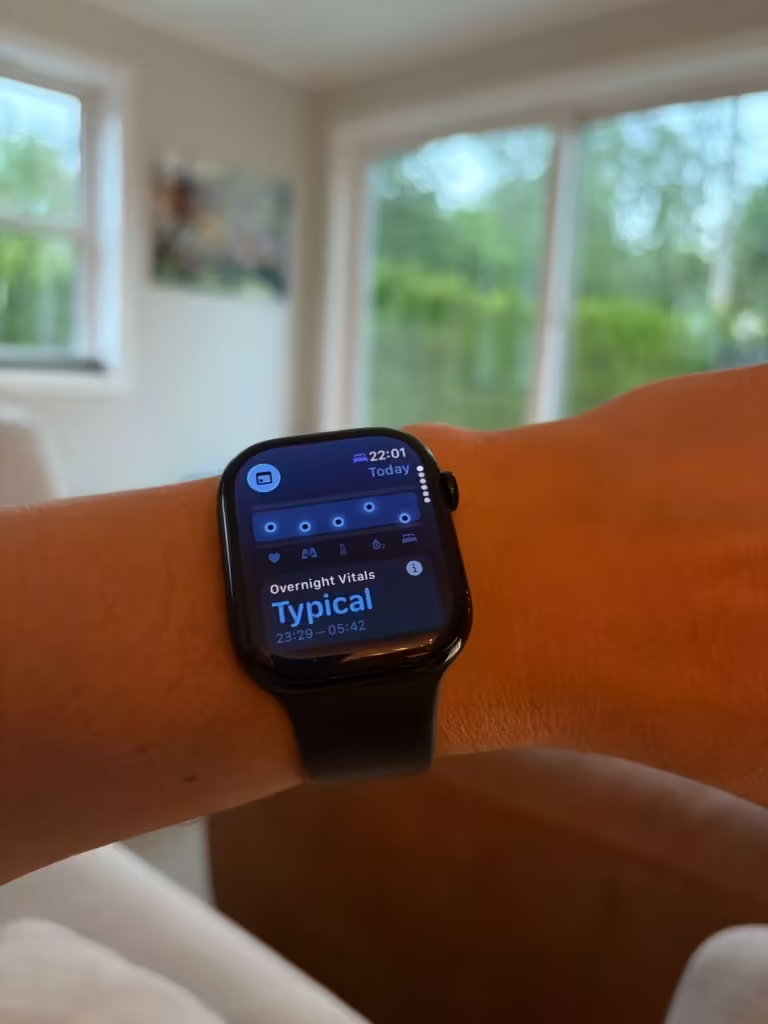
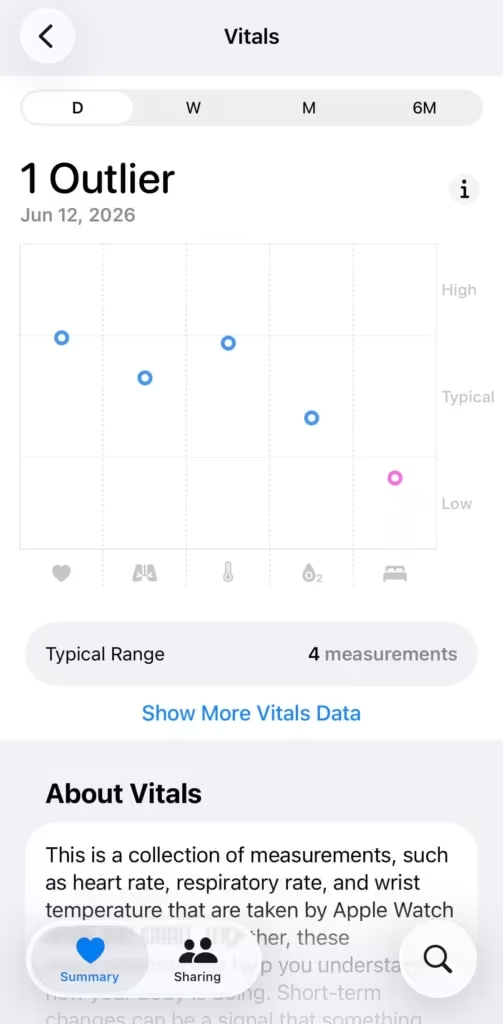
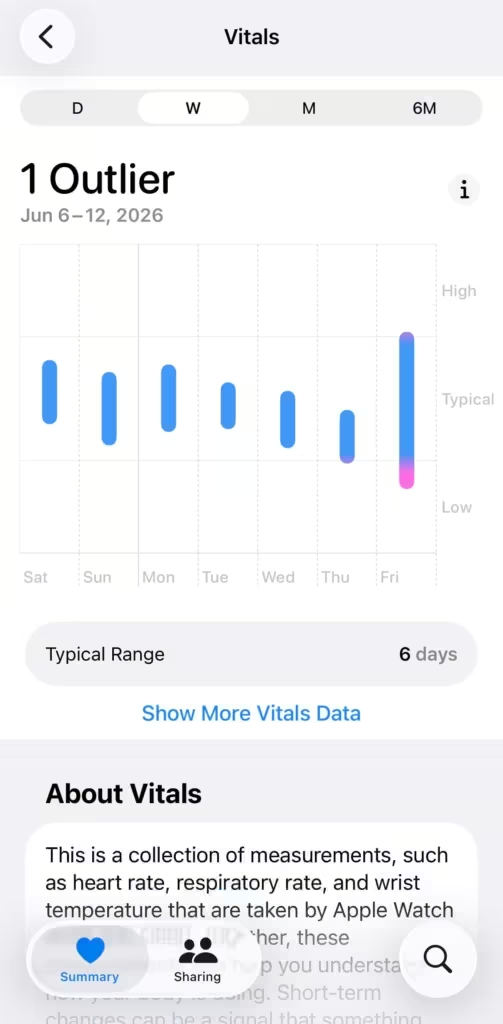
Vitals is a built-in Apple Watch app that tracks 5 metrics overnight (heart rate, respiratory rate, wrist temperature, blood oxygen, and sleep duration) and classifies each one as Typical, High, or Low based on your personal history.
- All Typical = nothing to worry about
- Anything High or Low = worth paying attention to
You don’t score Vitals. It adds context on top of your Health app check. A low HRV morning combined with a High sleeping heart rate in Vitals tells a much clearer story than either signal alone.
Note: Wrist Temperature requires Apple Watch Series 8, Ultra, or later. Blood Oxygen is unavailable in the Vitals app on some US models purchased after January 2024 — check your model at support.apple.com.
Reading your Apple Watch recovery score
Add up the 3 points from your Health app check.
3/3: Full recovery. Good day to train hard.
2/3: Some stress. Train, but keep intensity moderate.
0-1/3: Rest day. Skip the hard session.
Say you wake up Wednesday and check the Summary:
- HRV: 58ms, below your usual 60-70ms (0 points)
- RHR: 52 bpm, inside your normal range (1 point)
- Sleep Score: 79, Normal (1 point)
Score: 2/3. Your nervous system is flagging some stress even though your heart and sleep look fine. Could be yesterday’s training session catching up. Train today but keep it moderate, skip the hard intervals.
What 2/3 looks like
HRV low, RHR and sleep fine Your nervous system is under load but your cardiovascular system recovered well. Train moderate. Keep intensity controlled and skip anything that requires peak output.
RHR elevated, HRV and sleep fine Your heart is working harder than usual but your nervous system is stable. Could be a late meal or alcohol. Active training is fine, hard intervals are not.
Sleep low, HRV and RHR fine Your body recovered physiologically but you didn’t sleep enough. Poor sleep affects both how you feel and how you perform physically. Research shows sleep deprivation can reduce strength, endurance, and reaction time, so a low sleep score is a signal to reduce intensity, not just expect mental fog
The automated option
If cross-referencing 2 apps every morning sounds like too much, these are my 2 favorite apps for doing the heavy lifting for you.
Training Today — training readiness
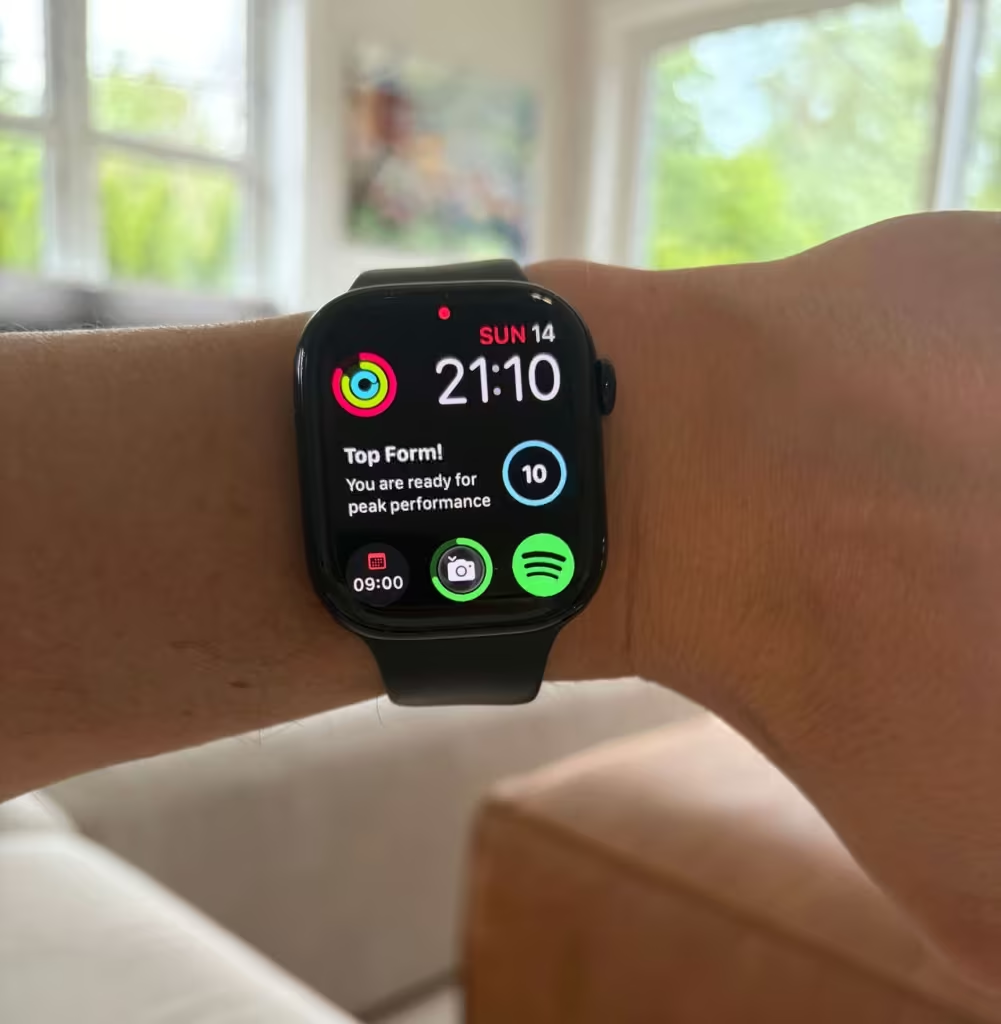
I use Training Today to get a quick read on whether I’m ready to train. It calculates a Readiness To Train (RTT) score by comparing your HRV from the last 24 hours against your personal 60-day baseline.
A high score means you’ve recovered well. A low score means your body is still under load. Because it’s driven entirely by HRV, it’s a direct read on your nervous system’s state.
It’s the simplest answer to one question: should I train hard today?
BodyState — full recovery picture
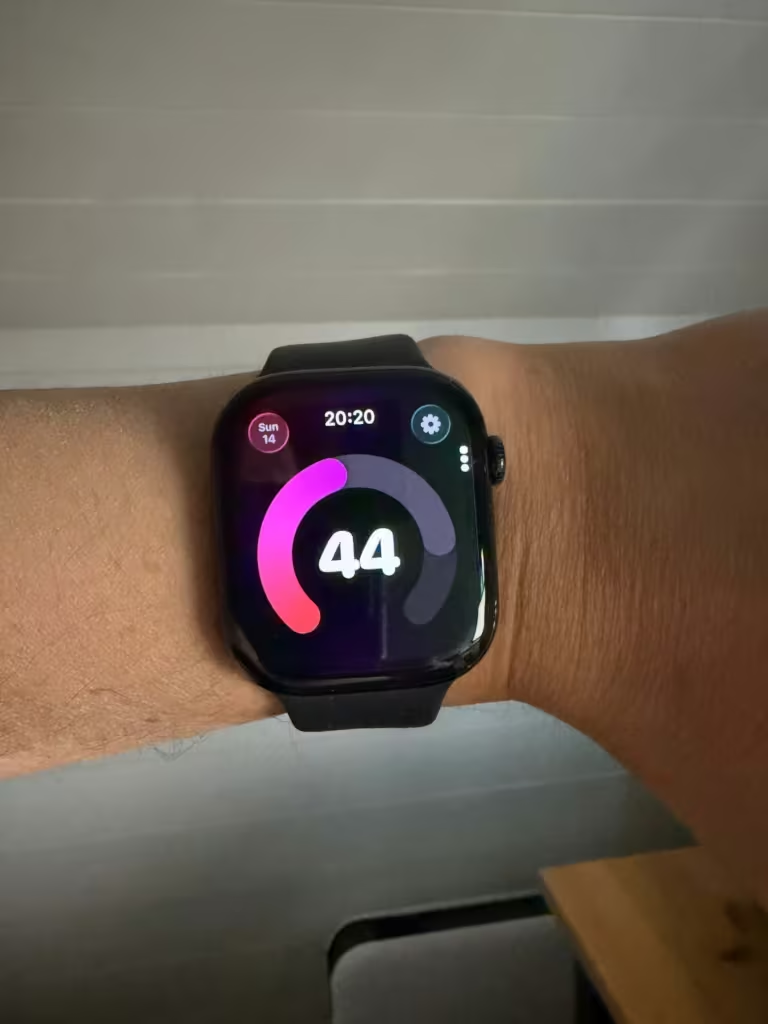
BodyState takes a broader approach. It reads your sleep, HRV, RHR, and activity load from Apple Watch and outputs a single score from 1 to 100. The score updates every 30 minutes and depletes through the day as you move and accumulate fatigue.
Weighting: sleep 35%, RHR 22.5%, activity load 22.5%, HRV 20%. All compared against your personal baseline range. (How the score works)
Level up: export your full health data for deeper analysis
The morning score works well as a daily gut check. If you want to go further — spotting long-term patterns, overlaying Training Load with HRV trends, or building your own weighted formula — you can export everything Apple Health has collected.
The on-device views only go back so far. The export gives you everything: months or years of HRV, sleep, resting heart rate, Training Load, and Vitals data in one place. You can calculate weighted recovery scores in a spreadsheet, see how “Well Above” Training Load weeks affect your HRV baseline over time, or feed it into an AI and ask whatever you want.
How to export
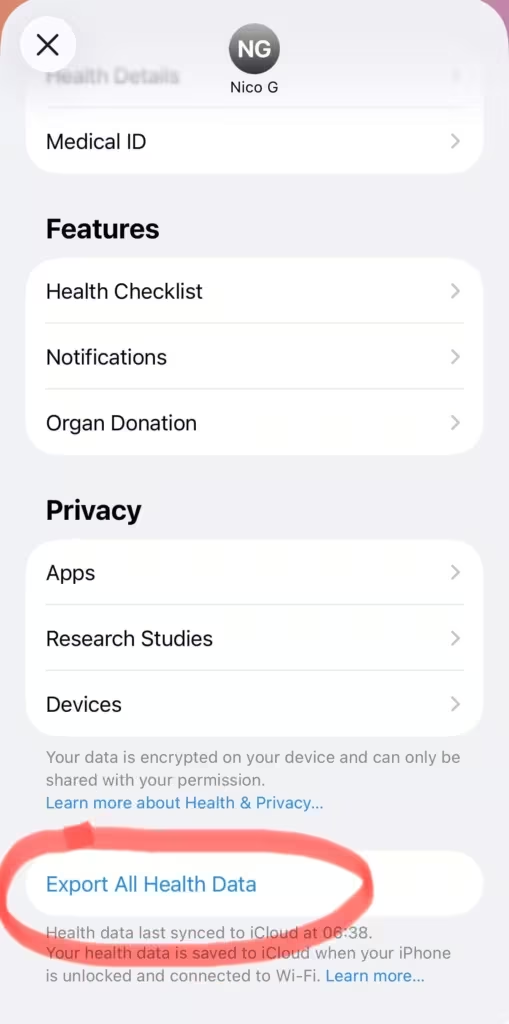
Go to the Health app, tap your profile photo, then Export All Health Data. It downloads as a ZIP file containing an export.xml file with every metric your watch has ever recorded.
Raw XML isn’t easy to work with. Two options to make it usable:
Health Auto Export — exports your data as CSV or JSON on a schedule. Much cleaner than the raw XML dump.
applehealthdata.com — a free converter that turns the XML into a readable spreadsheet.
What you can do with it
Once you have the data in a spreadsheet, you can build a more detailed version of the 3-point score — with historical trends, Training Load overlays, and Vitals outlier counts over time.
You can also drop the CSV into an AI like Claude or ChatGPT and ask it anything. Which weeks had the best recovery? How does your HRV respond after hard training blocks? What does your sleep look like before illness shows up in Vitals? The data is all there — the AI just helps you find the patterns faster.
If you want to try a weighted formula, one starting point: 40% HRV, 25% sleep, 20% resting heart rate, 15% Training Load status. Adjust the weights based on what you find actually predicts your best training days.
This is optional. The 3-point morning check is enough for most people. But if you want a full picture of how your recovery trends over months, the export is how you get there.
Summary
| Where | Score 1 point | Score 0 | |
|---|---|---|---|
| HRV | Health app Summary | At or above your usual | Noticeably below your usual |
| Resting heart rate | Health app Summary | Inside your normal range | Above your normal range |
| Sleep Score | Health app Summary | High or Normal | Low |
| Vitals | Vitals app | All Typical | Any High or Low flagged |
3/3 = train hard. 2/3 = train moderate. 0-1/3 = rest.
Sources: Apple Watch Vitals — Apple Support | How Training Today Works | BodyState — How the score works